Freestyle – how to deal with MindManager styles in documents exported to Word

Welcome to the first Sociamind post of 2016.

Recently I described my technique for using MindManager (MM) to write blog posts which involved exporting a map to Word and then importing from there to WordPress. I extolled the virtues of using WordX, the Word export add-in from Olympic Limited, to complete the MM to Word export process rather than MM’s built-in export facility, mainly because of the former’s much greater flexibility in selecting what to export and at what heading level, and the fact that it retains the Word template styles and style names.

In the article I commented that as I mainly use WordX I had not tried the standard MM Word export for this purpose though I believed that it should work, with the caveat that the process could be complicated by MindManager adding its own version of the Word heading styles. Subsequently in responding to a query on the Mindjet forum I’ve checked out whether a document created in Word using the standard MM export can be imported successfully into WordPress, only to discover that while it is imported it loses its Word heading structure. This is because WordPress doesn’t recognise the Word heading styles which MM introduces. Continue reading

Posted in Export, Mind Mapping, Research and Writing | Tagged , | 5 Comments

What happened in Sociamind in 2015?

I would like to thank everyone who visited the Sociamind page in 2015, especially those who made comments or provided other feedback. In this final post for 2015 and with only five days of the year left to go I thought I would provide a brief snapshot of what has been by far the busiest for the Sociamind blog since it commenced. I’ve also added an index of all the 2015 Sociamind posts in alphabetical order.

The direction that Sociamind will take in 2016 is still evolving. It will continue to include posts exploring some of the lesser-explored features of MindManager and the more esoteric ways in which the program can be used, but it may also return to some of the broader policy issues which were addressed in earlier years in this blog. In the meantime, all the best for 2016.

2015 statistics

Not counting this article there have been 12 posts on Sociamind which received 3,524 views from 2,239 visits so far this year. The three most viewed items posted in 2015 (apart from the Home Page) have been:

  1. Using MindManager dashboard maps with Outlook: part 1
  2. Creating collapsible and expandable “many-to-one” relationships in MindManager mindmaps
  3. Using MindManager dashboard maps with Outlook: part 4

However the single most popular post since this blog was created in 2009  is a surprising one that was added back in September 2010 – Is this the (Western) World’s oldest mind map? This post took a brief look at an image of a mind map, or probably more accurately an information map, contained in a bible produced in the Anglo-Saxon kingdom of Northumbria which was commissioned as a gift for the Pope in 692. I’ll have to be honest and say I have no idea why this post has proved so popular in 2015!

All the best for 2016.

Index of posts added in 2015

Posted in Mind Mapping, Software | Tagged , | 1 Comment

Supercharge web searching within MindManager

Update (21/06/2016): unfortunately the MindManager Google search map part has ceased to operate due to Google deprecating their old search API and adopting a new one. Consequently Mindjet have announced that they will update and completely rewrite the map part but this means it will not be ready for inclusion in the upcoming version 17. The implication is that it will not be available until version 18 is released in over a year’s time; it also means that no patch is planned for older versions of MindManager. I have expressed my strong concerns via the Mindjet users forum regarding this approach (especially the lengthy delay in releasing a new version of the map part) and intend to pursue this further.

For the time being there is little that can be done; the Google search map part is unusable which means regrettably that all the following information is redundant at least for the time being. Further information can be found here and Mindjet has also started a discussion on options to improve Google search functionality in the new version. 

Introduction: The Google search map part and its limitations

MindManager is a great program, but while some features have evolved and new ones have been added, others have pretty much stayed the same. One example of the latter is the Google search map part. This has been around at least since version 8 of MindManager and it along with its counterparts for Amazon and eBay make up the entire collection of web search smart map parts.
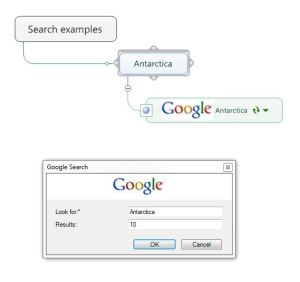
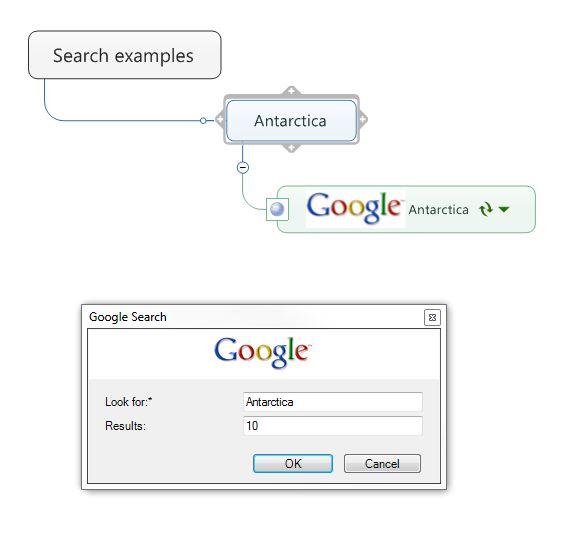
Google search map part and dialogue box

Google search map part and dialogue box

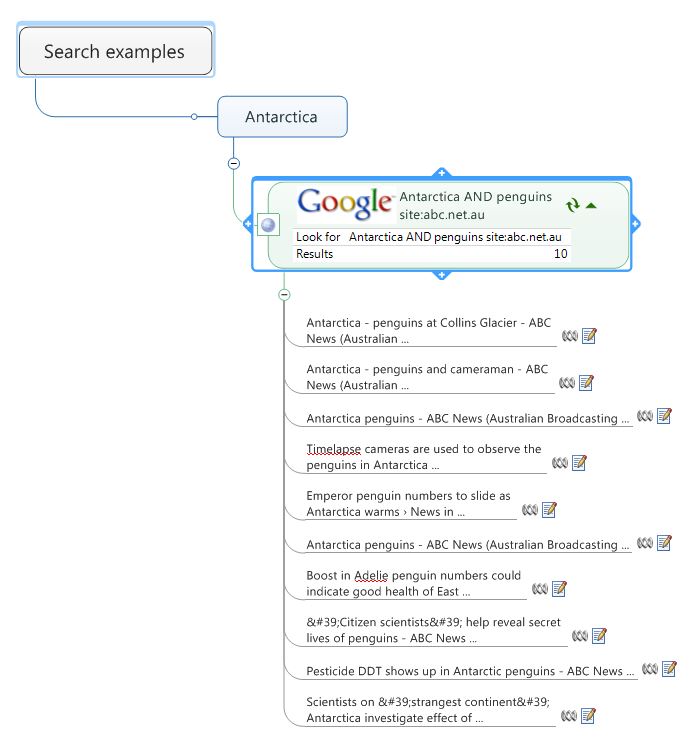
As far as I can tell the Google map part remained largely unchanged over this time, which means it has stayed simple to use but limited in usefulness. Add it to a parent topic or subtopic and it appears in the map, along with a dialogue box which has only two fields: Look for, which becomes populated with the parent topic name, and Results, which is the maximum number of search results that will be displayed and which defaults to 10. So, if the parent topic is, say, “Antarctica”, and you simply hit return you will get 10 research results relating to Antarctica displayed in the map as topics, with hyperlinks to the relevant pages and the first couple of lines of the page in the topic notes.

The problem is that you don’t really have much control over how these 10 particular results were selected. This is because the Google research map part defaults to the basic Google search which in fact has only one field – the search term itself. It would be great if there was a Google Advanced Search map part but there isn’t, but that doesn’t mean that’s the end of the story. It may not be immediately obvious but there’s a surprising range of things you can do within its parameters, some of which I’ll describe below.

Making Google search more useful in four steps

I’ve organised these tips in four steps. The first relates to what you can do to manage the Google map search part in MindManager and how you can create and save customised searches. The other three steps summarise how you can add and use Google search operators and parameters to further customise your searches.

Step 1: The basics – managing the Google search map part

Google search map part and results

Google search map part and results

The first and most obvious modifications you can make are to the search text and number of results – simply edit these fields in the dialogue box which pops up when you add the Google search map part to a map. Just toggle the expand/collapse button to show or hide the search fields.

You can change the search text completely if you wish – you will be asked to confirm the search term and then the previous search results will be replaced by ones relating to the new text. In this regard it is important to note that while the initial search text is derived from the topic or subtopic to which the map part has been attached, after this point the text of the parent topic and the map search are completely independent of each other.

You can also refresh an existing search by clicking on the refresh button to the right of the search text in the map part – but if you want to save any of the research results which have already appeared you should cut or copy and then paste them elsewhere in the map (or you can simply just drag them), as the refreshed search may come up with slightly different results.

Whether you have edited it or not, once a search has been created it can be saved as a map part and reused. If you want to do this you may also want to format the search topic’s fill colour, line colour or text which you can do in the same way as you would for any other topic. You can also modify any searches after they have been saved as map parts by right clicking on them and selecting Modify. You can also do this with the default map part, but frustratingly one thing you can’t do (as far as I can tell) in the default is change the number of results returned for the search topic from 10.
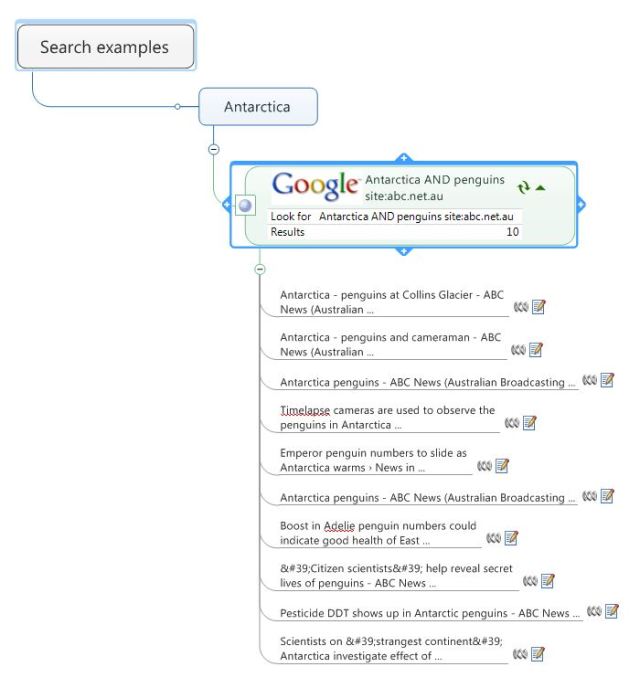
Google search map part results with AND and site operators added

Google search map part results with AND and site operators added

Step 2: Tailor made – using Google search operators to refine your results

Though they may make use of specific examples, such as the minus symbol to exclude specific words or quotation marks to search for specific phrases, many people don’t realise that even the standard Google search has a much wider search operators which can be used to tailor searches.

As the MindManager Google map part is a standard Google search all these operators are also available. I won’t go into the full range, but some of the more useful ones include:

” “ (quotation marks) – as I said, this will force Google to search for the phrase in the quotes, for example “Antarctic explorers“.

(minus symbol) – excludes pages that contain the word after the minus operator, for example, Antarctic -explorers.

.. (two full stops) – use to express a range of numbers, for example, 20..100 penguins

site – returns searches within a specific domain or site. For example, Antarctica site:abc.net.au returns pages related to Antarctica on the Australian Broadcasting Corporation website, while Antarctica site:.au returns pages on Antarctica which are hosted in Australia.

AND – self-explanatory: Antarctica AND penguins

OR – self-explanatory: Antarctica OR penguins

daterange – will search within a specified date range but is tricky to use. More on this in Steps 3 and 4.

These examples only scratch the surface of what you can do and there are plenty of more detailed guides online. Examples include:

https://support.google.com/websearch/answer/2466433?hl=en

http://www.gryffin.com/guide-to-google-search-operators

https://bynd.com/news-ideas/google-advanced-search-comprehensive-list-google-search-operators/

http://searchengineland.com/google-power-user-tips-query-operators-48126

http://www.googleguide.com/advanced_operators_reference.html

Bear in mind that some of the search operators are undocumented and in fact may not be officially recognised by Google. As a result they may be deleted or changed at any time. For a very comprehensive if slightly out-of-date guide have a look at the book Google Hacks by Rael Dornfest, Paul Bausch and Tara Calishain which is also available online.

Step 3: Searching for a date with Julian – with a little help from Excel

What is a Julian Day Number?

One of the more frustrating things about the standard Google search is that it is not immediately clear whether you can set a date range, unlike the advanced search where it is easily available.

In fact there is a way to set the date range but its operation is more than a little obtuse. This is because the only parameters it accepts are based on the Julian Day Number (JDN,) which is the continuous count of days since the beginning of the Julian Period, a measure used mainly in astronomy. Confusingly the term “Julian date” also refers the practice of representing the date as a combination of the year plus the number of days since the beginning of the year, but this is completely different to the JDN. There are many explanations of the latter but the most succinct is found in Wikipedia:

The Julian Day Number (JDN) is the integer assigned to a whole solar day in the Julian day count starting from noon Greenwich Mean Time, with Julian day number 0 assigned to the day starting at noon on January 1, 4713 BC, proleptic Julian calendar (November 24, 4714 BC, in the proleptic Gregorian calendar), a date at which three multi-year cycles started and which preceded any historical dates. For example, the Julian day number for the day starting at 12:00 UT on January 1, 2000, was 2,451,545.

So if for example you wanted to search for mentions of Antarctica made in the week from Monday 14 to Monday 21 December 2015 the expression that you would enter in the Google map part (or into a standard Google search outside MindManager) would be Antarctica daterange:2457370-2457377. Before I go any further I should say  that I understand that the daterange function is one of the search operators not officially supported by Google, which does not guarantee the results. It seems to work fairly reliably for me, however.

How to calculate and use a JDN in a Google search

Clearly calculating the JDN is not something you are going to be able to do off the top of your head. There are online Julian to Georgian calendar converters, but the simplest and most elegant way to find out a JDN for specific date is to set up a conversion formula in a spreadsheet. Excel and most other spreadsheet programs are no strangers to date numbering; even if dates are normally presented to us in a format we understand – for example, 21-12-2015, or (in the US) 12-21-2015 – as far as Excel is concerned that date (21st December 2015) is 42359. Obviously that’s very different to the JDN for the same date, but that’s because Excel starts its numbering from 1 January 1900. The basic principle is the same, though the JDN actually starts at 12 noon rather than midnight.
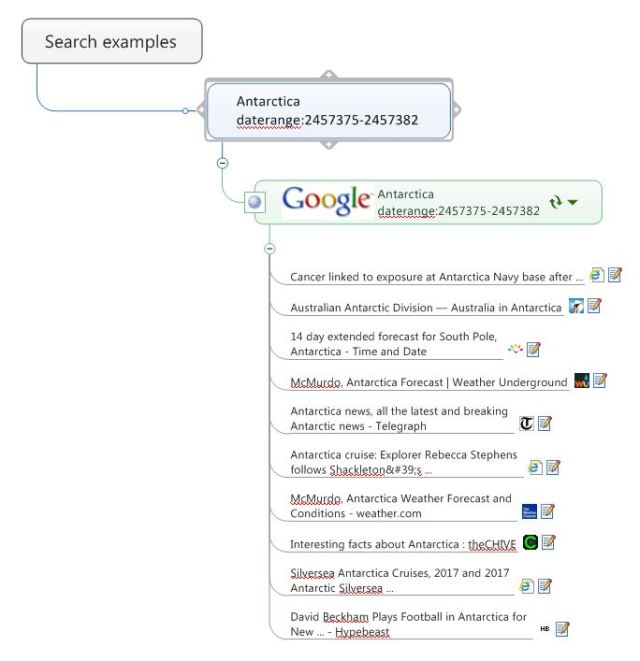
Google search map part with daterange operator added

Google search map part with daterange operator added

This means that it is fairly easy to convert a date in Excel into JDN numbering , assuming you have at least a basic working knowledge of Excel formulas. In fact there are instructions on how to do this on the Microsoft Office website. Scroll down to the section “Convert a date to a Julian date used in Astronomy” and you will see that if the current date is in (for example) cell A2 the formula would be =A2+2415018.50. In fact you should leave off the 0.5 because Google search isn’t terribly happy about fractions, so for 21st December 2015 the Julian Day Number is 42359+2415018=2457377. Incidentally for various reasons which I don’t fully understand the formula is valid only for dates after 01/03/1901, but this should not present a major problem.

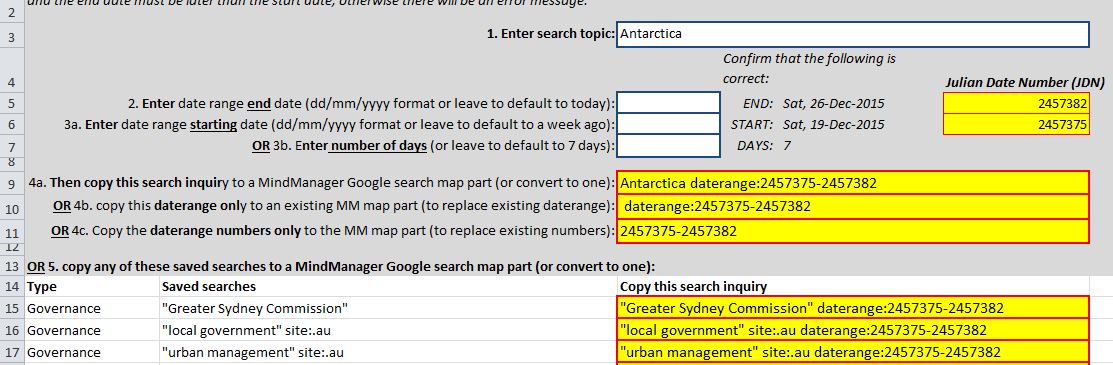
Obviously using a spreadsheet makes it easy to apply the formula to different dates, but the real advantage is in being able to set up and change a date range easily. This can be done in two ways, either by specifying the start and end dates, or by specifying one or the other and adding or subtracting the number of days equivalent to the range you want. You can also use Excel’s TODAY function to establish the end of the date range and work backwards from there to establish the beginning date. This will automatically update every time you open the file.

The essential thing is that you end up with two dates expressed as Julian Date Numbers and formatted in a way which Google understands. This means that you have to combine text and calculation results in the Excel formula using the ampersand. Taking the example we used earlier and assuming you have the start and end dates in cells A2 and A3 respectively, the formula would be =” daterange:”&(A2+2415018)&”-“&(A3+2415018). Note the leading space before daterange.

If you like you can also put the search term into the formula as well. Assuming that you put the search term in the cell A1 the resulting complete formula would be =A1&” daterange:”&(A2+2415018)&”-“&(A3+2415018). So, if the search term in A1 is “Antarctica” and the date range is from 14 to 21 December 2015, the end result is as we saw earlier, Antarctica daterange:2457370-2457377. This result you can either copy into a topic in MindManager and then apply the Google search map part, or you can paste directly into the search map part itself.

Setting up multiple searches

This may seem like lot of trouble to go to for a one-off search, but if you need to search a lot of topics over a consistent time frame you can set up the date range, refresh the search term as required and copy each search to MindManager.

Better yet, you can set up a small table of searches over the same date range but with different search terms, copy this group and paste them in MindManager attached to the central or a main topic. Make sure they are all highlighted then apply the Google search map part to all the copied topics. You will still have to confirm each search but this is a fairly quick way to set up a bank of searches.

Bear in mind though that searching is not unlimited as Google frowns upon mass computer-generated searches. I’ve found that about a couple of hundred results spread over a maximum of 10 or a dozen searches seems to be the limit; after this Google refuses to return any more searches and even Google map parts for searches already undertaken can become disconnected from Google (the little silver ball to the left of the map part gets replaced by a question mark). If this happens, reduce the number of queries and/or the number of results to be generated, save and close the map and then reopen it. If necessary you can delete the Google map parts and reapply them to the topics which contain the search terms and date ranges.

There is one final piece to this puzzle, which is how to update the date range in the searches. MindManager makes this a little hard by not having a facility to automatically update topics or topic properties, but there is a workaround which I’ll discuss in the final step.

Step 4: Updates – how to refresh your Julian date

Given that there is no way to automatically refresh the date range within MindManager the only options to do this depend on Excel’s TODAY function. There are two alternatives – the first is to delete all the searches in the map completely and then use the steps described above coupled with the TODAY function to generate a completely fresh set of searches. This is fine if you have only one or two searches which you haven’t altered in MindManager and which are attached to the same parent topic. But what if you have edited the search terms in the map, or attached multiple searches to more than one parent topic?

The second alternative is to keep the existing searches in place and overwrite the date range with a fresh set of dates by using MindManager’s Replace function. When I say “keep the existing searches in place” I mean the parent topics containing the search term and not the attached Google map part, which this method replaces. While it is possible to edit just the Google map parts to replace the date range this means the daterange expression in the parent topic and the Google map part would be different which could cause confusion; alternatively you could replace the date range in both but this is unnecessarily complicated. On balance I think the following is the simplest approach:

  1. Confirm that you have saved all the search results you want to keep in a different location and then delete the Google map parts but leave their parent topics with the search terms and date ranges.
  2. Copy the current date range from one of these topics and call up the Replace function, then paste the date range in the Find what field. You can either copy and paste the whole daterange operator starting daterange (for example, daterange:2457370-2457377) or just the JDN part of the expression (as in 2457370-2457377); it doesn’t matter which you choose so long as you are consistent.
  3. Leave the Replace dialogue box open and switch to Excel and generate the new date range. Copy this using the same form of the expression you selected in step 2 (for example, one week on from the daterange example in stage 2 would be daterange:2457377-2457384or just 2457377-2457384).
  4. Switch back to MindManager and the Replace dialogue box. Paste the updated daterange expression in the Replace with field, and click on Replace all to update all the date ranges in the topics with search terms in the map.
  5. Highlight all these topics then apply the Google map part. Confirm the search on each topic to generate fresh searches.
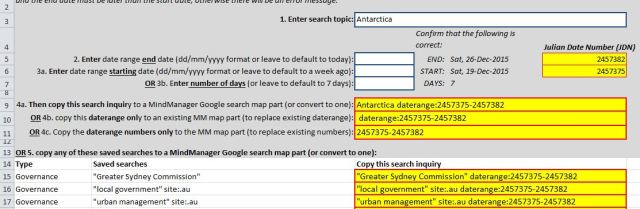
Example of an Excel Julian date converter

Example of an Excel Julian date converter

Conclusion: Comparing the results

This brings us to the final question – is all this effort worthwhile when you can simply use Advanced Search directly in Google, setting the date range with its Last update field and copying the results to MindManager? Any user interested in combining Google searches with mind maps has to answer that for themselves, but I think there are some benefits in being able to search directly and store the results within MindManager.

I’ve tried to make this approach a bit more practical by using Excel to create a conversion table which automatically updates and provides options to create a search term combined with the current date range (which defaults to the last seven days), or to copy just the updated daterange search operator. It also includes a table containing combinations of the date range with search terms I use a lot.

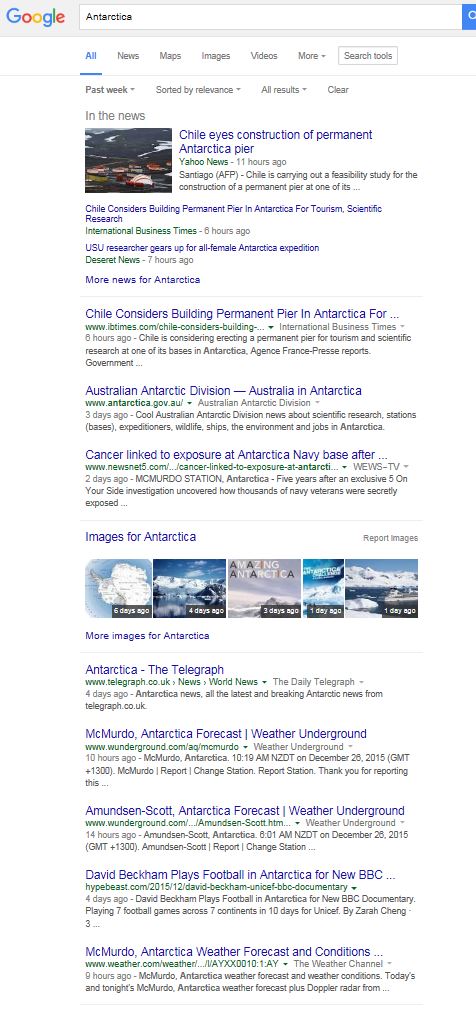
Finally, I’ve compared the results I obtained using the Google map part method and Google Advanced Search for the same period. As you can see the results are very similar, though not identical, which obviously reflects subtle differences in the way that the standard and advanced Google searches operate.
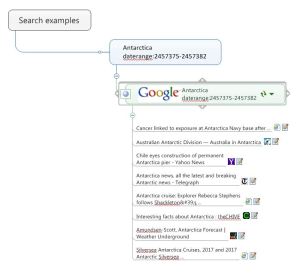
Search for Antarctica over the past seven days using MM Google Map Part

Search for Antarctica over the past seven days  (to 26/12/15) using MM Google Map Part

Search for Antarctica over the past week (to 26/12/2015) using Google Advanced search

Search for Antarctica over the past week (to 26/12/2015) using Google Advanced search


Posted in Mind Mapping, Research and Writing | Tagged , | 4 Comments

Writing news blog posts with MindManager in eight steps

Introduction

I’m certainly not the first nor will I be the last person to use a mindmap to assist in writing a blog post, but it was only recently that I discovered how useful they are in writing regular news and other similar posts. In this post I’ll outline the approach I’ve developed for The Strategic Week posts on my StrategicMatters blog which relate to governance, planning, infrastructure and transport issues relating to Sydney Australia. While I’m no doubt telling some readers how to suck eggs, others may find this useful. I’m also very interested in any feedback, especially ideas on how this process can be improved.

StrategicMatters blog news post

StrategicMatters blog news post

First before I start, a bit of explanation of what I mean by “news posts”. These are blog posts with a lot of short articles each on current news items, usually related to a specific theme and/or area. These articles usually contain or are followed by hyperlinks to other material on the host website website or to other pages or downloadable documents on other websites. The techniques I’m describing can also be used with other blog post types, for example if you regularly publish lists such as “ten top tips on how to do x”, or “five best holiday locations in y city”.

News posts are a little different to the standard blog format which generally tackles one topic or issue at a time. In a sense they are a replacement for – or adaptation of – the more traditional newsletter with a mix of short news items that was originally distributed in hard copy and then electronically by email. You can of course still continue to notify your contacts by email or social media to advise them that a new post has been made and you can combine news posts with single issue ones on the same blog.

Second, I’ll describe the tools I’m using. These comprise MindManager for Windows v16, the WordX add-in for MindManager from Olympic Limited, MS Word and WordPress. I’m also using MS Excel to help with the Google search process (more on that in a later post) but this is optional. The approach I’m describing is specific to these tools but most of the basic principles can probably be applied to some degree with other mind mapping applications and combinations of programs. I should also note that copying from Word and pasting directly into WordPress is still slightly frowned upon because of the messy HTML code it can produce, but it works sufficiently for my purposes.

Finally, this is definitely not a general guide on how to write posts generally or specifically how to use WordPress. There are plenty of other people out there who know a lot more than me who have written extensively on these subjects. What I can say however is that the approach I’ve described seems on my reading to be broadly consistent with good blogging practice.

Step 1: Brainstorming – why am I doing this and what should it look like?

The first step is the most basic and also the most traditional uses of a mindmap – brainstorming the purpose of the blog, who the audience is and potential sources of information. For a news or listing type blog you might need a second brainstorming map as you have additional questions to answer, such as how frequently you are going to post and what format are you going to adopt – for example, are you going to structure the posts based on themes, issues, or geographical areas?

This second map will form the basis for the default heading structure for each of your regular posts, so as a general rule you should try to keep this simple and fairly flat. At this point you should decide on the WordPress theme you are going to use. Most should be suitable though some themes are better suited to news type posts. I’m using a fairly standard theme at the moment though I’m planning to investigate some more news-friendly themes.

Step 2: Framing the joint – creating the post structure

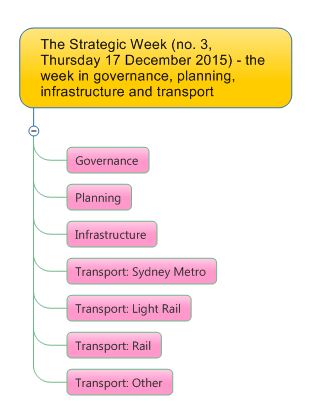
Now you need to create a topic structure that reflects the format you decided on in step one. The main topics should reflect the main sections and (if required) the first subtopics the next level of heading. Each topic level should have a distinctive topic colour or some other form of formatting. As I said, keep it as simple as possible – my weekly blog posts for example have only seven main topics/headings and no subtopics/subheadings.

Simple news blog structure

Simple news blog structure

The default subtopics (or sub-subtopics) can be used as general research topics, but you will need one form of subtopic with distinctive formatting – again a topic colour will do. These are the “article topics” which will be used for the individual news items within each post.
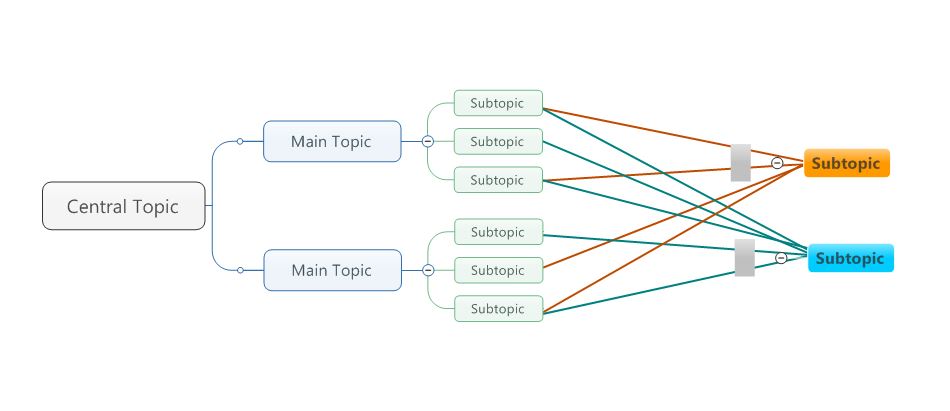
Once the structure is determined you can save the group of main topics as a map part (if you want to create and save more than one post per map) or as a template (if you want to create a separate map for each post). Of course you can still vary this structure for individual posts. The article topic should also be saved as a separate map part however as this will need to be added as required for each news item.

At this stage you should also decide whether you need tags or flags or not. While these can be useful in grouping items and keeping track of the themes or areas over time I haven’t found them as helpful as I would have thought, but I do use a flag to highlight completed articles. Another possible use for is to flag particularly interesting and priority items. Again, it’s best to keep the tag structure simple.

Step 3: Digging for data – doing your research

I don’t intend to tell people how to conduct their research, but it may be helpful to identify some of the available tools, especially those that are useful for regular news blog postings. Apart from Google and other search engines, these include Google Alerts, news stories, media releases from relevant organisations and RSS feeds from other blogs. Any item found through these processes can usually be sent directly to the relevant main topic in the map with a hyperlink to the web item.

You can also use the Google search map part in MindManager which pastes the search results directly into a map, but this is less useful than it might appear. The map part is based on the basic Google search not the Google Advanced format, so that the search and filtering options are very limited – for example, it’s difficult to specify a data range like “last week”. There are some work-arounds, however, which I’ll detail in my next post.
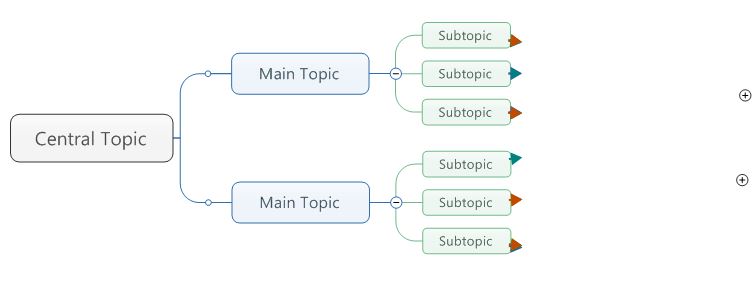
Simple news blog structure section with news article topics

Simple news blog structure section with news article topics

Step 4: Reading…

After the initial phrase of research the material needs to read, assessed and further sorted and consolidated under the appropriate main topics and subtopics. As you read the material you can conduct further research and tag interesting and priority items. If you wish you can prepare initial summaries and paste relevant quotes in the topic notes for each research topic.

 Step 5: … and writing

Now you can create the individual articles that will make up the news post. For each item add the article topic map part under the appropriate main topic, provide the item title and write the contents in the topic notes. You can copy any quotes as well as material you have already prepared in the research topic notes into the article topic notes; you can also add links to the original web pages either as links on the article topic or by adding them directly to text in the topic notes. As I said earlier I find it helpful to add a flag to indicate when an article is completed.

When the original writing phrase is completed the material will need to be proofread, not only to check or typos and spelling errors but also removing extraneous spaces and returns (for some reason, these seem to appear easily in MindManager topic notes). You may have noticed that you have ended up with a variety of fonts and type sizes as a result of copying quotes from different websites – if you have the MAP add-in it is easy to apply consistent formatting to all topic notes, but this isn’t strictly necessary if you are copying the material to Word.

This is a good place to talk about images. Unfortunately, while these can be added to topic notes and successfully exported to Word, they are ignored when the material is subsequently copied from Word to WordPress. Instead you have to use the WordPress image file upload process to insert them separately into the WordPress post.

Finally, don’t forget to save the blog post map, either as a stand-alone map (linked to a dashboard map) or part of a larger map with branches for each post. If the latter becomes too unwieldy over time you could set up maps for posts over a set period – say two or three months each – also linked to a dashboard map.

Step 6: Off to Word

There are three ways to transfer material from the article topics to your blog:

  1. Copy articles directly from the topic notes into the blog post. This is the simplest but most time-consuming, as each item has to be dealt with separately;
  2. Use MindManager’s Word export facility to export the whole post to Word and then copy to the blog. While I haven’t tried this for this particular purpose it should work, but it is not a particularly flexible process and is further complicated by MindManager adding its own version of the Word heading styles. It is also much more difficult to include or exclude specific topics; or
  3. Use the WordX add-in from Olympic Limited. This provides far greater control and flexibility, including the facility to easily include or exclude specific individual topics or topic groups and to assign a style to a topic irrespective of its topic level. It also uses the actual Word paragraph styles.

Here’s the approach I’ve developed using option 3. This description assumes that you have WordX installed and that you have some familiarity both with it and with Word heading styles:

  1. Go to the WordX ribbon and under Templates click on Manage and select an appropriate template. Unless you particularly need them in the post I would select a template without heading numbers, but these can also be removed easily once the map has been imported into Word.
  2. Before you apply the template untick the Initialise Map Topics with Default Styles, as this will apply a Word style to every topic in the map.
  3. Set up the post headings by filtering to select to select main topics only (based on the unique formatting you applied earlier). Then on the WordX ribbon go to the Style tab and apply the main heading style from the Word template that you wish to use to the highlighted main topics. Repeat this process for first level sub-topics if you are using these as sub-headings.
  4. Now you need to do the same with the article topics. Filter for these based on their unique formatting and select and apply the appropriate Word sub-heading style to the highlighted topics.
  5. While the article topics are still selected, check under the WordX Topic tab that Export Topic, Notes and Hyperlink(s) are highlighted for each item so that these will also be included in the export. Then confirm that all the relevant main topics, sub topics and article topics – and only these topics – show the WordX icon. Now you can export to Word.

Step 7: Tidying up

There is another reason to use Word as an intermediary stage in the conversion from a mindmap to a blog news post – it provides another opportunity to proofread the material. Word is also a great “leveller” in the sense that a uniform style is applied to the topic notes that will form the guts of the post.

The first task is to ensure that the map has been imported correctly with all the relevant main topics, subtopics, article topics and in particular the topic notes (the latter are easy to overlook). Also check that the hyperlinks have been imported correctly. After proofreading you can further fine-tune the text and formatting and save the file again ready for export.

Step 8: Pressing the post button

The final task is to transfer the Word document to WordPress. First, create a new WordPress post then copy the Word document and paste into the blank post; you also need to do this separately with the post title. At this point you can upload, caption and paste any images you want to include in the post. Then it’s time for a final proofread.

The final steps are to add WordPress categories and tags, check and if necessary update the WordPress Publicize connections and review in WordPress Preview. Now you can press the Publish button to upload the post. After checking that it has been posted successfully all that is needed to do is to share the post’s URL and publicise it as appropriate.

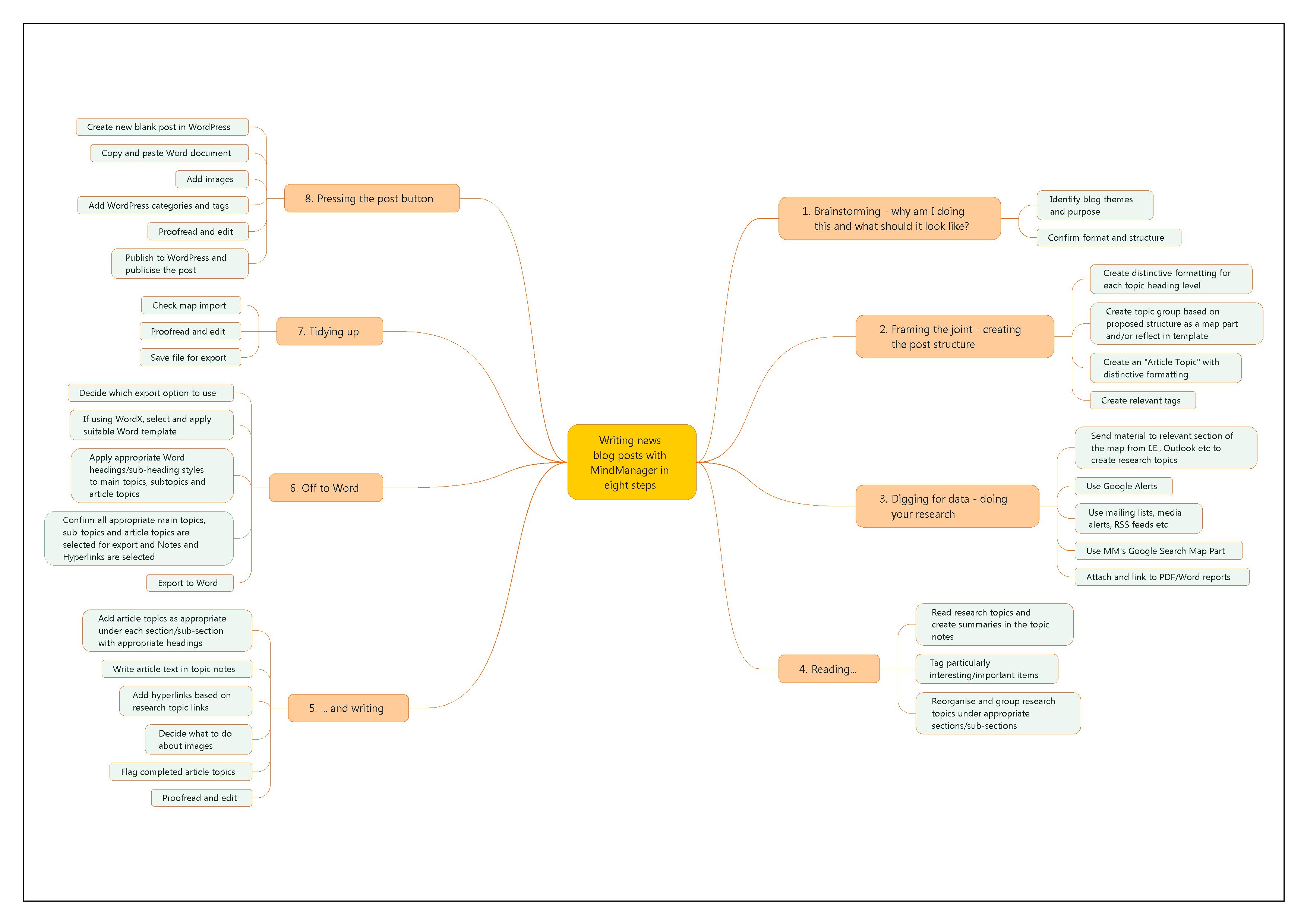
Writing news blogs in WordPress with MindManager - summary map

Writing news blogs in WordPress with MindManager – summary map

Posted in Mind Mapping, Research and Writing, Social Media | Tagged , , | 2 Comments

Addendum to exporting a simple task or to-do list from MindManager

A little while ago I outlined a process for exporting a simple flat table of tasks from MindManager using the Gantt chart table. After describing this process I commented that there was one drawback, which was that the copying options were limited. It was best to maximise the Gantt chart so that if possible the total table or at least the portion to be copied was visible, because there seemed to be no way to scroll down while copying from the Gantt table so that a larger table could be copied easily in one go.

Obviously there will be times when the area you want to copy is bigger than the screen so I described various relatively complex approaches to deal with this. However after a tip from Nigel Goult from Olympic Limited I tried some keyboard combinations and I’m pleased to say that SHIFT plus the up and down arrow works. First you need to highlight the whole row then press shift and the arrow key you want (usually the down arrow) to highlight either the whole table or the section you want to copy.

So that’s pretty much it – the process is now much simpler. After setting up your tasks and the associated timeline, switch to the Gantt view. Click on the first row you want then use the SHIFT plus the down arrow key to highlight the rows you want, copy these and switch to Word or Excel and paste. Then you can format the resulting list as you wish.

Posted in Export, Mind Mapping, Software | Tagged , | 2 Comments

Follow-up to exporting a simple table or to-do list from MindManager

I’ve been exploring the process I described in my last post to produce simple to-do lists or task tables from MindManager maps by copying the Gantt chart table and then pasting it in Excel or Word. But first, a clarification in relation to that process – if you want the main and intermediate level topics in the map to appear in these task lists, they have to be visible in the Gantt chart table. This means that either they have to be formatted as tasks or, preferably, that the task information is rolled up to them or through them to the central topic.

Now to describe some of the extra techniques and ideas I’ve come up with in relation to the process (again, based on MindManager 16 but mostly applicable to all recent versions):

Filtering to produce tailored lists. You can filter the map and then click on the Show Filter in Gantt Chart button to mirror the results in the Gantt chart table before copying it to Word or Excel. As well as the start and due dates, task progress or resources which are displayed in the Gantt chart you can also filter on things which don’t appear there, like task priority. This approach would be particularly useful for printing tailored daily task lists for individual staff members involved in major projects, especially those working in situations where they don’t have access to MindManager or to electronic task lists on computers, smartphones or tablets.

Producing an itemised shopping or equipment list. As noted above, one limitation of using the Gantt chart table is that it displays only those topics in the map which incorporate task information. It also does not display topic notes. This means that if you want to include, say, a shopping list or itemised inventory of equipment, these also have to be turned into tasks. The problem is that doing this can distort task info rollup process and it also make it difficult to distinguish the list from the rest of the “real” tasks.

A partial solution is to turn these items into tasks but make them only one minute each in duration. To distinguish them from actual tasks you could also put a dash or similar character at the start of each list item (see following examples).

Sample map list 1JPG

Sample gantt list 1JPG

The table containing these list items can be pasted in Word without any problem but to avoid an error message in Excel (which assumes these characters are mathematical symbols) the first column of the portion of the spreadsheet where you are pasting the table should be formatted as text rather than general. The following shows the table in Word:

Sample word list 1JPG

Combining the Gantt table copying approach with MindManager exporting/sharing. While I devised the Gantt-based method mainly to produce simple task lists, the results do reflect the limited number of items shown in the Gantt table. While this is quite adequate for most purposes there are times when it would be useful to be able to include some of the omitted items such as priority, duration, effort or topic properties. In addition when exporting to Excel the Start and Due Date columns are in text rather than date format and need to be converted if any date-based calculations are needed.

If the map is relatively flat you can simply use the export to CSV facility which incorporates most of these items and edit the resulting file in Excel. If however you have a lot of tasks at different levels which you want to appear in a single list but still also include items such as priority, duration or date formatting without doing too much editing you can combine the simple task list approach with the standard export process. This involves the following steps:

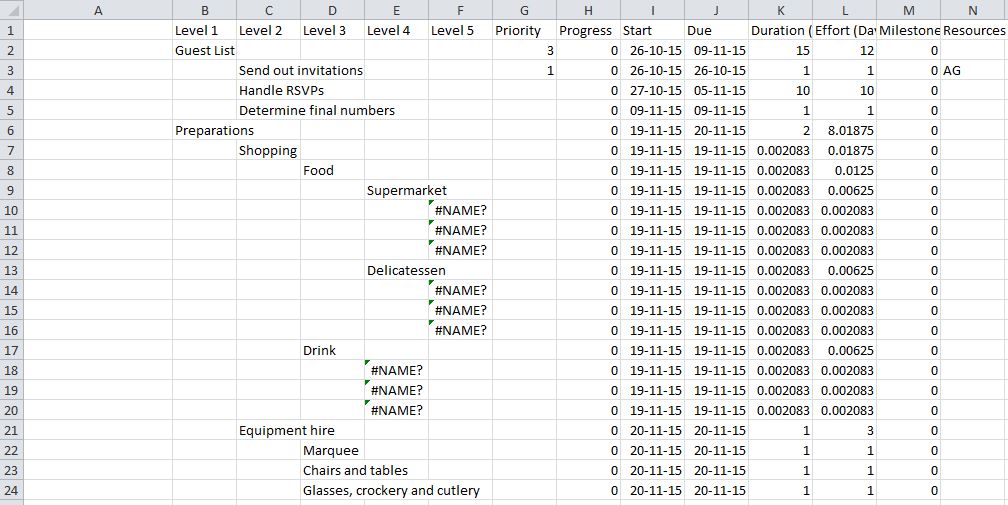
1. Export a CSV file from MindManager after filtering the map if required. Select Outline in the Export to Spreadsheet (CSV) Settings.

2. Open the file in Excel and insert a column to the left of the exported table. If you have list items in the Gantt table which are preceded by a dash or other mathematical symbol format the column you have just inserted in the Excel spreadsheet as text (it’s probably wise to save the file at this point). The spreadsheet should look something like this:

Sample export 1

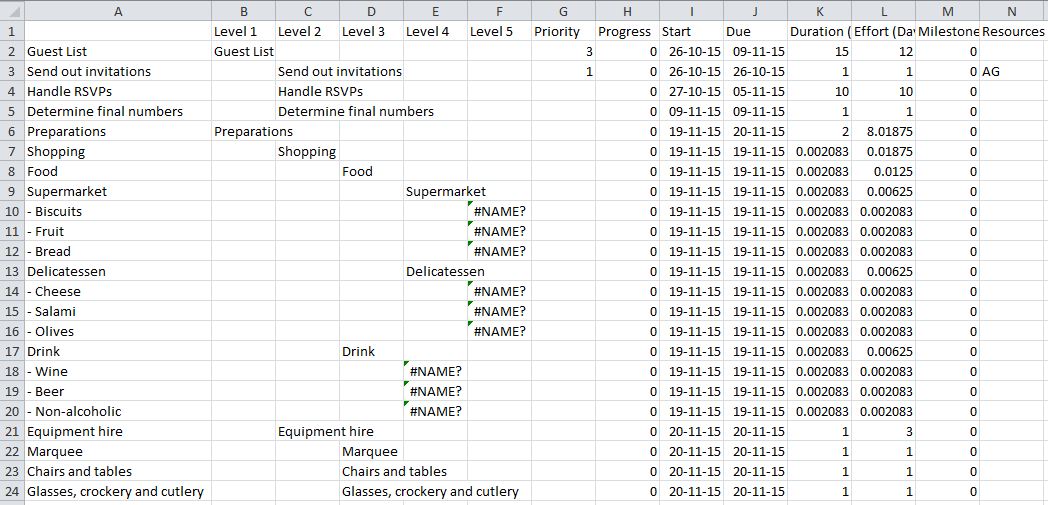
3. Return to MindManager, open up the Gantt table and select the range of topics and tasks you wish to copy using the process described in the last post. Ensure however that you highlight and copy only the first column.

4. Switch back to Excel and paste the copied set of topics and tasks in the blank column you inserted in step 2. It should be easy to check against the previously-exported table whether the topics and tasks line up appropriately:

Sample export 2

5. Once you have the first column correctly positioned, delete all the columns relating to the different map levels that came in the table imported from MindManager. The single column that was pasted in the preceding step should now be immediately to the left of the Progress and other task information-related columns. The table should now look like this, with the Start and Due Date columns automatically formatted as dates:

Sample export 3

6. Edit and format the file as required and save again. If you want the file to appear as a Word table, follow these steps in Excel then copy the table to Word.

Creating an alternative “hybrid” view of the Gantt chart. The process of creating and printing the Gantt view in a MindManager map has very limited options and it is difficult to get the results to look the way you want. Simply taking and printing a snip of the Gantt page can sometimes produce better results but in some respects has even more limitations.

One alternative is to create a hybrid view incorporating the text list view with a snip of just the Gantt chart itself. This requires a degree of trial and error, but also has the advantage that the text in the table can be formatted and both this table and the Gantt image resized independently of each other. To do this requires the following steps:

  1. Set up a page in Word with the margins and orientation you want – most likely, landscape with narrow margins – and then insert a single row table with only two cells.
  2. Go to the map in MindManager and copy the Gantt chart table (or the relevant section of the table), then return to Word and paste it in the first cell. If possible limit the amount pasted so that it can stay on one page.
  3. Using the techniques described previously convert the pasted material to a table, so effectively you have a table within a table.
  4. Return to the map and take a snip of the relevant section of the chart (without the table). Make sure the range in the chart being copied exactly matches the range in the Gantt chart table copied in step 2.
  5. Paste the resulting image in the second cell of the table. The you will need to resize the image and experiment with the size of the text, the width of the cells etc until the topics and tasks in the table align with the Gantt chart bars.
  6. Format the table as you see fit and if you wish add a heading. The result should look something like this:

gantt hybrid export

Posted in Export, Mind Mapping | Tagged , | 2 Comments

Exporting a simple task table or to-do list from MindManager

While there are numerous options for exporting MindManager maps to Word, Excel, PowerPoint and other destinations, one thing the program lacks is an easy way to print or export a simple table or to-do list of tasks with just four or five columns – a column combining main topics and tasks for example, and one each for start and due dates, and duration and progress.

This is a particular problem if you want to create such a list based on a complex map. If you have a fairly “flat” map with not too many main tasks or rollups and with all the tasks at the same topic level, then exporting to Excel and creating such a task list is reasonably straightforward. If however you have a map with multiple levels and rollups and in particular with tasks occurring at different levels, things can get very messy.

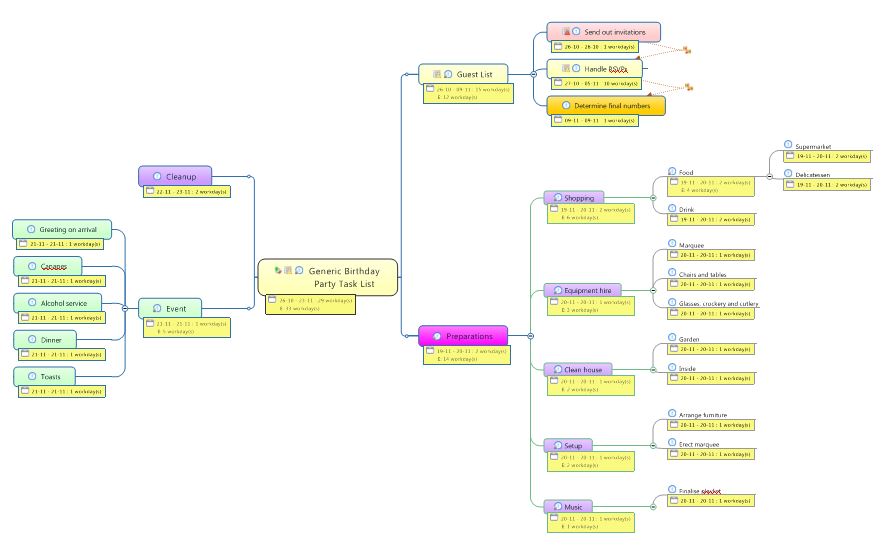
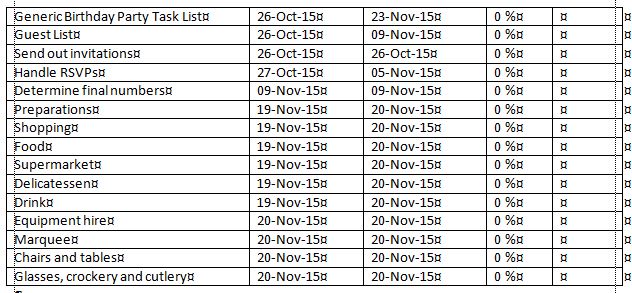
I’ve created this hypothetical party planning map to demonstrate some of the issues involved and how they may be resolved (I’m using MindManager 16 for this but the problem and approach should be similar for all recent versions):

Sample map 1

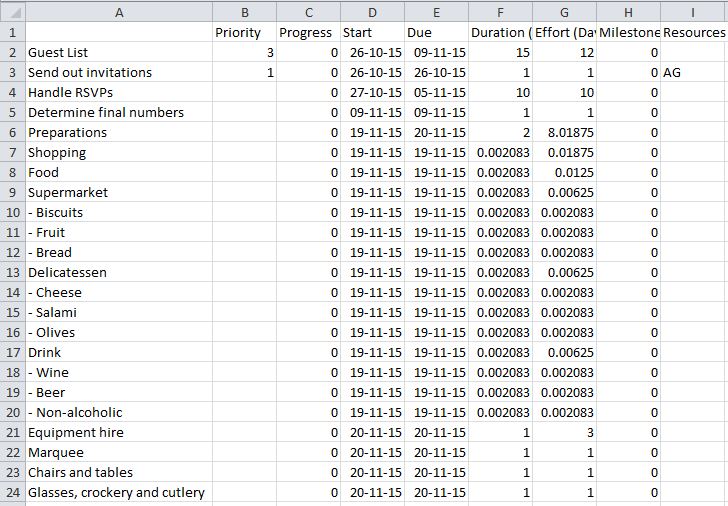
When this map is exported to Excel with the task information included it ends up looking like this:

Sample Map spreadsheet

While the task info such as start and due dates all end up in the same column, the main topics appear in the first column separate from the tasks themselves which are distributed across the columns representing the three different levels in the map.

This obviously makes sense for a lot of purposes but is not ideal for a simple task list. You can try to collapse the multiple columns with the actual tasks and main topics into a single column, but doing so by simply moving tasks to the first column can result in the task info getting out of whack. I’m sure a macro could be created in Excel to automate this process while maintaining the task information columns, but not everyone can write macros.

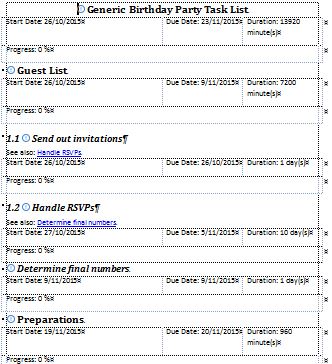
Exporting to Word with the task information results in something which looks even more divorced from a simple task list. The tasks appear as headings at various levels and the task info as one-row tables under the task heading they refer to, as the following document exported from the above map demonstrates:

Sample Map word

Again it may be possible to turn this into a simple list but this seems to require even more work than converting the Excel file, so I started to look at alternatives. My first point of call was the Outline view, but this does not include any task information. There is however another starting point, which already looks very much like the task list I want; the summary table of tasks and task information in the Gantt view, as shown in this snip of the Gantt chart from the party planning map:

Sample Map gantt fragment

While this is close in format to the list I want, how you export it isn’t immediately obvious though it is relatively simple. All you need to do is maximise the Gantt chart so that all of the section you want of the Gantt table is visible (I’ll come back to this in a moment), highlight all the topics and subtopics you want to appear as well as the columns you need and then copy them.

There are however a couple of catches. The most important is that the selecting, highlighting and copying must be done in the Gantt chart table and not on the map itself. If you highlight topics in the map view a similar area will also be highlighted in the Gantt view, but if you click in the Gantt table area to copy it, only the information relating to the final topic will actually be copied. In addition there is no point in right-clicking after selecting the area in the Gantt table to be copied, as the context menu does not include the copy command; you have to use either the copy command in the ribbon or its equivalent in the QAT:Sample Map gantt highlighted fragment

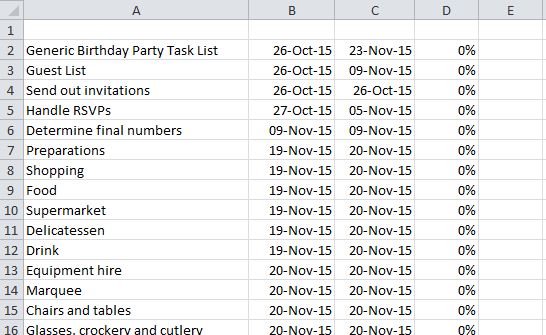
Once you have copied the portion of the Gantt table you want, simply switch to Excel or Word and paste it. In Excel the material copied will appear as a simple table with all the topics and tasks included in a single column. You will need to widen the columns after which you can format the new table as you wish, though remember that the dates appear as text rather than date numbers and will need to be converted if you wish to use them in calculations:

Sample Map spreadsheet 2

In Word the information is pasted as rows, with each item separated by tabs. To turn this into a table, simply select Convert Text to Table and nominate the tabs to become the column delimiters. As with Excel you can now adjust column widths and format the table to appear the way you want:

Sample Map word 3

There is one final catch with this approach. I mentioned earlier that the Gantt chart needed to be maximised so that all of the table or at least the portion you want to copy is visible, but obviously some maps will always be bigger than the Gantt window. The problem with this is that there seems to be no way to scroll down while copying from the Gantt table. Edit: it turns out that all you need to do is highlight a row then press Shift and the Down Arrow key to highlight the area you want even if it extends beyond the bottom of the visible page. See the addendum for more details.

There are two workarounds. The first is simply to copy the visible section then paste this in Word or Excel before scrolling down and repeating the copying process with the next section. The second is a little more complicated but means that you can copy the entire map in one go.

First you collapse the Gantt table so that only the main topics are visible, then select all the collapsed main topics. Now expand the map and all of it including all subtopics and tasks should be highlighted and can be copied, with one annoying exception – if the last main topic in the map has sub-topic tasks, none of these will be selected. The simplest way to overcome this is to create a dummy final main topic with no subtopics and format it as a task with start and due date information (the latter preferably beyond the final date of the the actual tasks in the map). This dummy topic will “protect” the subtopics of the preceding main topic and can be deleted from the Excel or Word document that you export to.

Limitations:

There is no easy way to distinguish main topics or other topic levels once they are combined in a single column in the exported document. The easiest way to do this is to capitalise or manually number them in the map before exporting.

The other main limitation is that only basic task information is exported – start and due dates, progress and resources. While this is probably enough for most basic purposes it would be helpful if other features such as task priority or even topic notes could be exported as well.

The main limitation is the slightly clumsy way all this has to be done. While it is not terribly complicated, Mindjet should make it a good deal easier to export from the Gantt chart. It would be even better if such a “flat” table option could be made available in the export/share menu.

In my follow-up post I describe some additional techniques and ideas on how to use this process.

Posted in Export, Mind Mapping | Tagged , | 7 Comments

MAP for MindManager – image exporting with the Swiss army knife of mindmapping

The world of add-ins for MindManager has always been interesting, if a bit fluid. MindManager (MM) is one of the few desktop mind mapping programs with an API which allows the development of third-party add-ins and as a result a few great examples have appeared over the years – and often, unfortunately, also disappeared a few years later. Some were broken by MM upgrades which occasionally can change quite fundamental aspects of the program; others were brought out by Mindjet to be integrated into MM, a process which sometimes resulted in them being dumbed down as important but complex features were removed in misguided attempts to make these add-ins more user friendly.

Despite these difficulties a few companies have continued to support MM a range of established add-ins and even occasionally develop new ones. One example is UK company Olympic Limited which produces two of my favourite add-ins, WordX and MAP for MindManager. WordX offers a much more sophisticated version of Word export than MM’s built-in facility, with much greater control, for example the ability to tailor which Word style is applied to groups of topics or even individual topics. WordX also uses Word’s own templates, which means that it is much easier to use default Word styles in reformatting and editing the resulting documents.

MAP banner

However it is MAP that I wanted to highlight in this post. MAP – Map Action Pack – is as Olympic put it a “re-envisioning” of the company’s previous successful OPTi-Add-In which contained a number of handy commands which extended MM’s core feature set. MAP takes this a step further with the latest version 1.6 providing 30 extra commands and over 350 additional icons.

While several add-ins may have more than one key feature – and there’s certainly nothing wrong with specialisation – none offer the sheer range provided by MAP. Hence the Swiss army knife comparison. I think a lot of children (especially those who grew up in the 1970s and earlier) as well as anyone who’s gone bush walking, tramping or camping will be familiar with these. In their simplest form they offer just a blade or two, but go further up the range to the Mountaineer or the Ranger and you will be presented with dozens of tools like saws, scissors, openers and corkscrews. There will also be one or two things you don’t recognise and don’t think you’ll need, but you never know when they might prove to be useful, if not essential in an emergency.

So it goes with MAP. It’s 30 functions are organised into eight groups – Navigation, Auto Views, Show/Hide, Map Actions, Topic Actions, Linking, Math and a new group for version 1.6, Exports.  It isn’t possible to describe all 30 actions in a single post and they range from the “wow, that’s really useful” to the “what’s the use of that?”, but the point is that each user will have a different idea about which functions fall into each of these categories and those that are somewhere in between.

MAP ribbon

MAP ribbon

With this in mind I’m going to talk about one of MAP’s features which I find particularly useful and here I have to declare an interest. I have acted as a beta tester for a couple of MAP’s functions – the Image Export facility which debuts in version 1.6 and the Fixed Topic Width feature which appeared in an earlier version. The latter feature is based in part on a suggestion I made to someone who wanted to standardise the width of topics in their maps.

So on to my favourite in the MAP collection – the Image Export facility. I believe this may prove to be the standout with a lot of people because it fixes a basic shortcoming in MM which Mindjet have consistently failed to address – the lack of any ability to export MM slides as images to PowerPoint (PP). It is of course possible to export a MM map as a text outline to PP or to make use of PP’s rather primitive graphic objects, but MM provides no facility to send actual images of parts of the map directly to PP.

Many people have wanted to do this in a more effective manner than taking screen shots of bits of mindmaps and pasting them in PP one-by-one. As a result a number of enthusiasts have tried to develop workarounds based on various undocumented aspects of MM, combined with little-used features in PP. I’ve also suggested options using third-party applications, which was partly the reason I was asked to test the beta version of MAP 1.6. While these have filled a need I think all the authors involved would agree that the results are a little fiddly in use.

MAP provides a more elegant solution and a much better experience for the end user. To begin you set up slides within MM in exactly the same way that you would for a MM presentation or a conventional MM-to-PP export. Then you can use MAP’s image export facility to export individual JPG images of these slides or to send the images either to MS Word or PowerPoint.

This export process is very simple. First check you have all the slides you need and how they appear (a tip – you can hide various topic attributes, like for example the slide icons). Then you use MAP’s settings to determine whether the export process will use the map background slide colour or remove this to make the background transparent; this is especially important for PP if you don’t want to obscure the background that’s provided by the PP slide template. MAP will retain your selection until you change this setting.

When you are ready to export select the MAP tab to call up the MAP ribbon and then click either the Image Export button to create JPG image files of each of the slides, or the arrow underneath the button to select image export to either Word or PowerPoint. If you elect to export the images as images you will be asked where you want to save the resulting JPG files; these are then created with filenames based on a combination of a number and the main topic text.

If you decide instead to export to Word or PP you will then be offered the option to use the default template in either program or to select another template. MAP will then create either a new Word or PP document fairly quickly; in the former, the slides will appear as images, preceded by the text contained in each slide’s main topic which will formatted using the templates default level 1 heading style. Similarly in exporting to PP each MM slide will appear as a separate slide with the main topic text appearing as the slide heading. This means you can create a complete PowerPoint presentation or Word documentation of your mindmap in seconds.

Sample slide export

Sample MAP slide export

There are only two or three minor shortcomings to the image export process. The first is that while the export map images are clear and usable, they are not quite the same resolution as MM slides viewed (or printed) within MM itself; if you want this level of quality you will need to use the workaround I documented and mentioned earlier which involves using image printing software to create high-res image files.

The second is caused by a limitation inherent to the MM slide facility – it does not show MM’s user-inserted relationship lines which link topics that are not on the same tree as the main topic in the slide. If you want to do this you will have to use the Windows snipping tool or something similar to take a snapshot of the linked topics and then paste the result in the PP or Word document.

The third is more subtle and is only really an issue if you make use of the often-overlooked capacity of MM slides to “remember” the level of map expansion that was applied when they were created, irrespective of the level of expansion applied subsequently in the map. This feature is handy within MM because it means you can make multiple slides of the same topic showing its branches in different levels of expansion and also because it’s the basis of MM’s ability to allow users to expand or contract topic branches on slides “live” during a presentation. The MAP slide export works differently and will show topics only with the level of expansion applied to the map at the time of export and not that which was applied when the slides were created.

These are minor quibbles in what is otherwise an great feature. And while image export is the pick of the MAP pack (for me at least anyway), there are plenty of other goodies. These include the ability I mentioned earlier to impose a fixed width on MM topics, as well as facilities to “sweep” a map removing task icons and other features with a single command, globally alter the font in topic notes, hyperlink two topics in the same map, convert sub-topics to markers or to notes, or to switch them to call-outs and to resize topic images – just to name a few.

In summary, I imagine most users would find something in MAP to more than justify its purchase – and if you have ever wanted to turn your mindmap into a PowerPoint presentation, or to document the slide images in Word, the image export facility alone is worth the price of admission.


Posted in Export, Mind Mapping | Tagged , | 1 Comment

Creating collapsible and expandable “many-to-one” relationships in MindManager mindmaps

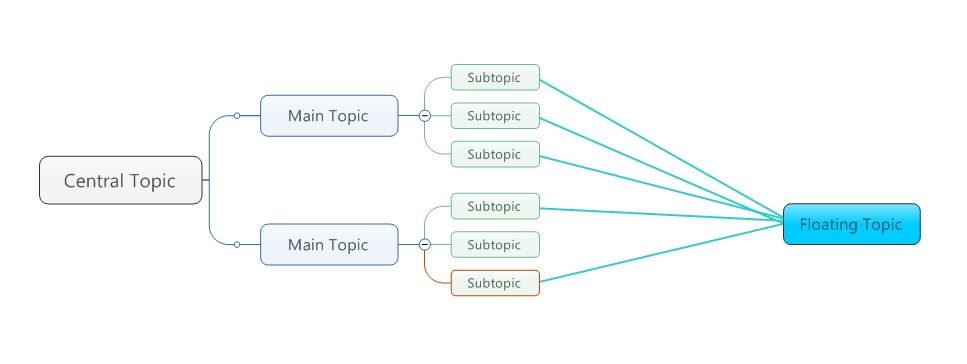
One of the things most mindmapping programs are not really designed for is showing “many-to-one” relationships and MindManager (MM) is no exception. Like most of its competitors, the essential paradigm of MM is a set of topics branching out from a central topic and not the other way. While it is fairly easy to show simple many-to-one groupings using MM’s boundaries and callouts features, as shown in the following map:

Many-to_one 1B

– this only works when all the child sub-topics of a given main or sub-topic are grouped together; in other words, you can’t group selected sub-topics and not others, or the sub-topic “children” of more than one “parent” at a time. Anything more complicated requires extensive use of other features such as floating topics and relationships lines (which allow topics anywhere on a map to be linked) to, in effect draw the map, as the following example shows:

Many-to_one 1A

Recently a MM user asked on the Mindjet forum whether it was possible to make a map with these “hand-drawn” many-to-one floating topics in which such a way that they could be made to appear and disappear in a similar manner to the way in which topic levels in a conventional MM map can be collapsed or expanded without manually removing and/or replacing them. The general consensus seemed to be that this would be very difficult to do, but I think I’ve come up with an approach that makes this possible.

First, consider the problem. If we have a map something like the one above, the user wanted to be able to highlight a specific many-to-one floating topic and its relationships with the subtopics in the main map tree by temporarily removing the other floating topic and its relationships, to look like this: Many-to_one 1C– or alternatively to do the same with the other floating topic, like this: Many-to_one 1D– or remove both, and then quickly return to the fully expanded state.

The trick I came up with is to use a completely blank floating topic with no text, lines or fill colouring which renders it invisible. Then attach a sub-topic to this floating topic as the “real” many-to-one target topic. This can be formatted as you wish but should have no topic lines (you might need lines for sub-topics of this topic, but I’ll come back to that later). Then you attach the relationship lines to the relevant sub-topics (or main topics) on the main tree.

The reason for using the invisible floating topic is that by linking the real topic to it you create an expand/collapse button that can be used to make the target topic disappear and reappear, along with any sub-topics attached to it and the relationship lines back to the topics in the main map. In the following map I’ve given the hidden floating topics a fill colour to make this approach a bit clearer:

Many-to-one 4

In fact it’s a good idea to delete everything else but retain the fill colour on the topics which you want to disappear until you have finalised their locations (it’s hard to move something you can’t see!). The map should look like this without any fill colour in the hidden floating topics:

Many-to-one 1 - Copy

Of course you are left with the +/- buttons between the invisible floating topics and their visible sub-topics, but I think that’s a small price to pay – especially when they make it easy to collapse and expand each of these ersatz branches with a single click. The following shows what the map looks like with one of the many-to-one topics collapsed:

Many-to-one 2 - Copy– and this is the same map with both of them collapsed:

Many-to-one 3a

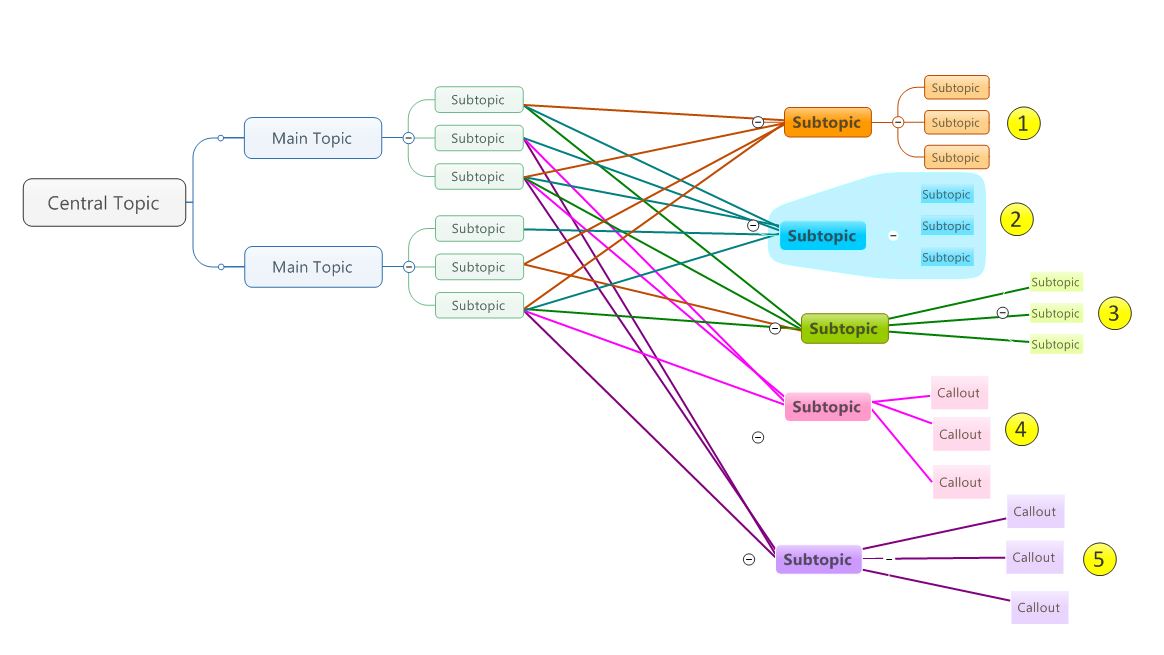
Now what if you want to use the many-to-one topics as the start of new one-to-many sub-topic groups, in other words to create small trees attached to them? Well, there are a few alternatives which I’ve shown in my final map:

Many-to-one 7

The options shown in this map include:

  1. Sub-topics with lines: The orange topic has three child sub-topics connected with conventional lines. I’ve reinstated the line for the orange topic to make the connection more obvious but you don’t have to use it; without the three subtopics would still have lines connecting them to the +/- button but no line to their parent topic. The +/- button on the right means that this group can be made to appear and disappear independently of the orange topic, but the whole group disappears when the orange topic’s button is clicked.
  2. Sub-topics with boundary fill: The blue group works substantially the same way, but I’ve put a boundary around the group with an appropriate fill colour and tried to make the topic lines a matching colour to this. Otherwise this group is technically the same as the first group.
  3. Invisible floating topic with relationship lines to subtopics: With the green topic I’ve repeated the same trick I used with the orange and blue topics in the earlier maps. There is an invisible floating topic to which the three pale green sub-topics are attached. These subtopics have no lines but are linked instead to their parent by relationship lines. This means there is more flexibility in where you place this sub-group and they can still be made to appear and disappear as a group, but the downside is that to remove the green topic and this group completely from view you have to click both the +/- icons.
  4. Callouts with relationship lines: With the pink subtopic I’ve added callouts instead of sub-topics. These callouts have been formatted to have a fill colour but no lines; instead they have been given relationship lines. This gives you more flexibility as callouts can be moved around more easily, though bear in mind they can do strange things to the placement of their parent topic. The disadvantage however is that the callout group cannot be collapsed independently of their parent topic, though unlike floating topics they will disappear when the parent topic is made to disappear.
  5. Invisible floating topic with callouts and relationship lines: Finally with the purple subtopic I have combined these techniques. Attached to it is an invisible subtopic to which the callouts are then attached. The callouts are formatted without lines but have relationship lines back to the parent purple topic (not the invisible subtopic). This means you can make this group appear and disappear as if they were conventional subtopics and they will also disappear when the parent purple topic is collapsed, while at the same time they have the greater flexibility in terms of placement that callouts have over sub-topics.

All these options may seem like a bit of work but once you decide which is the best approach for your needs you should be able to save the sub-topic group as a map part and just format it as required when you paste it in the map.

Posted in Mind Mapping, Viewing, Filtering and Formatting | Tagged , | 2 Comments

How to create maps in MindManager from directory-style tables

Update: Recently I published a series of articles covering the import of a range of material from Word, outlining some techniques which update the methods discussed below. Part A looks at the import of standard (non-table based) Word documents, Part B specifically covers the topic discussed below – the import of non-task tables (and Excel spreadsheets) – while Part C describes how to import tables and spreadsheets containing task lists.

In an earlier post I described a method using Word heading styles to import spreadsheets and tables such as directory listings and catalogues via a Word table to create hierarchical MindManager (MM) maps with multiple levels. Subsequently I developed an alternative approach using Excel pivotables which I first outlined on the Mindjet website forum, but I thought I would post an updated version outlining both methods.

Part of the problem with importing directory listings, catalogues and similar spreadsheets into MindManager (MM) is actually at the Excel end. These tables are sometimes “flat” with no hierarchical information or alternatively they involve repetition of the higher-order elements mostly in the first column or two; for example, a set of entries for an organisation’s workforce will involve the department and/or section name being repeated for each person in that section, usually in the first column or two.

Faced with tables like this, MM has no way of knowing when each section begins or ends; it needs some sort of outline structure, Word heading styles or a combination of both for the import process to be able to work out which items are main topics, sub-topics, sub-subtopics etc. In effect the methods I proposed in my previous post suggested two ways around this problem – edit the spreadsheet to look more like an outline, or alternatively import it first to Word, adjust the table and apply Word heading styles.

Previously I had looked at Excel’s pivotable feature but I didn’t think it would be able to create an outline to match MM’s requirements without a lot of work, given its primary focus on statistical analysis. After a closer inspection it turns out happily that I was wrong; in fact, pivotables are probably the easiest way to turn a directory-style table with hierarchical data (in either Excel or Word) into a map.

Whether you use the pivotable approach or the method I described earlier depends a lot on what the table looks like to begin with as well as what you are trying to do with it. Here are the two main approaches, based on Excel and Word 2010 and MM v15 (the instructions are similar for recent versions of either program):

Option 1:

If the table is completely flat with no hierarchical information (or if it contains hierarchical information you don’t require to be displayed) then the method outlined in my earlier post (which was based on an approach first described by Andrew Wilcox in his Applications of MindManager blog) is probably the best option:

  1. If the table is in Excel, copy and paste it into Word. If you are copying the material from a table on a web page, remove any excess text (including duplicate carriage returns) using search and paste and then delete any columns you don’t need.
  2. Apply Word’s inbuilt heading styles to each column in cascading order left to right; ie, heading 1 style to the first column, heading 2 to the second column and so on (turn off any heading numbering in the styles).
  3. if you want some of the information to appear in the topic notes the last column(s) can be left in normal or any non-heading format, though bear in mind that they will appear in the notes as a table. Once you have edited it the Word table might look something like the following, depending on your heading styles, and is ready to be sent to MM:
    Table example 1
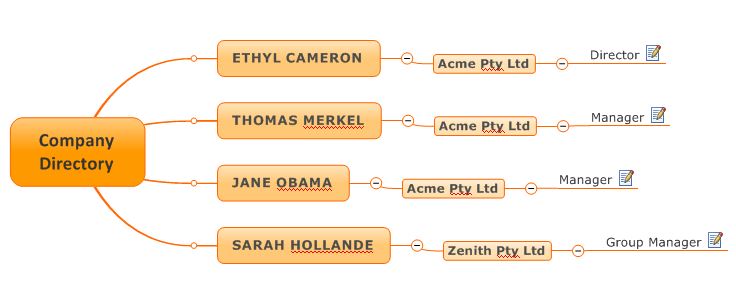
  4. Highlight all the required rows (without the header row) then press the MindManager button on the Word ribbon to export to MM (do not copy and paste). The data in any column which does not have a heading style (such as the phone numbers in this example) will be treated as topic notes, so the above table ends up looking like this as a MM map, with one branch per table row (I’ve made this right-facing to save space):Table import 1

Option 2

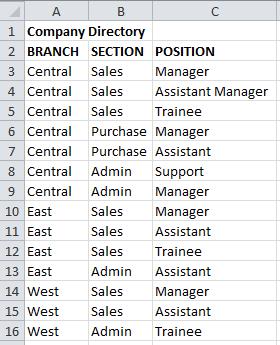
If your table contains hierarchical data that you want to be reflected in the map you can manually construct an outline table which was the method I described previously or use the Excel pivotable approach, which is a lot easier. We’ll start off with something like this:Sample directory 2A

  1. If the table is in Word, copy and paste it to Excel (the opposite of of option 1). Then arrange the columns in descending hierarchical order, left to right. In this example the highest level is branch, followed by section. Then sort the rows in the same heirarchical order.
  2. While this method can handle unsorted data, sorting makes it easier to check that the cells to be grouped are identical, which is essential to form the hierarchy required for the map. First ensure that there are no blank cells or incosistent spacing and then check everything is spelt and punctuated consistently. The table should now look like this: Sample directory 2B
  3. In the Insert tab on the ribbon, go to Tables and click on the button to create a pivotable, either on this worksheet or another one, using your table as the source.
  4. When the PivoTable Table Field List appears tick all the fields to add to the pivotable as row labels in the order that they appear in the first table. The pivotable should now appear, along with the Pivotable ribbon.
  5. Highlight the pivotable, click on pivotable options on the ribbon and then again on Options. When the PivoTable Options dialogue box appears, click on the Totals and Filters tab and untick the boxes under Grand Totals. The pivotable should look like this: Sample pivotable 1
  6. Click on the first entry in the first field (in this case, “Central”); the Active Field tab on the PivoTable Tools ribbon should now displaying the relevant field (in this case, “Branch”). Click on Field Settings and when the dialogue box appears, click on the Subtotals and Filters tab and select None under Subtotals. Then go to the Layout and Print tab, select Show items in outline form and untick the Display labels form the next field and Display subtotals boxes.
  7. Repeat step 6 for the first entry in each of the other fields. The pivotable should now be a proper outline table which looks like this: Sample pivotable 2
  8. Highlight all of the pivotable except the header row, switch to a new map in MM and paste the pivotable (do not use the export to MM button, again the opposite of the first option). The resulting map should look like this (I’ve renamed the central topic manually and changed the layout to right map again): company structure map
  9. Unlike the previous method there is no way to specify that the lowest level(s) should be formatted as topic notes. However if you have Olympic Linited’s MAP add-in you can apply the Sub-Topics to Notes option on a topic-by-topic basis once the map has been created.

Uses and limitations

Both options are best suited to creating maps of tables containing descriptive rather than statistical information, for example to create organisation charts from company personnel lists or visual representations of catalogue lists or tables in documents , for example a table of recommendations in a report.  As noted earlier the source table should be well structured.

Neither approach is ideal for importing a table of tasks, as everything is turned into a topic; they also don’t provide a facility to import data such as task due dates or resourcing information. For an alternative template-based approach, have a look at Cain Hill’s post here. Cain’s model is based on using Freemind but probably could be adapted for MindManager.

Posted in Import, Mind Mapping | Tagged , , | 3 Comments